


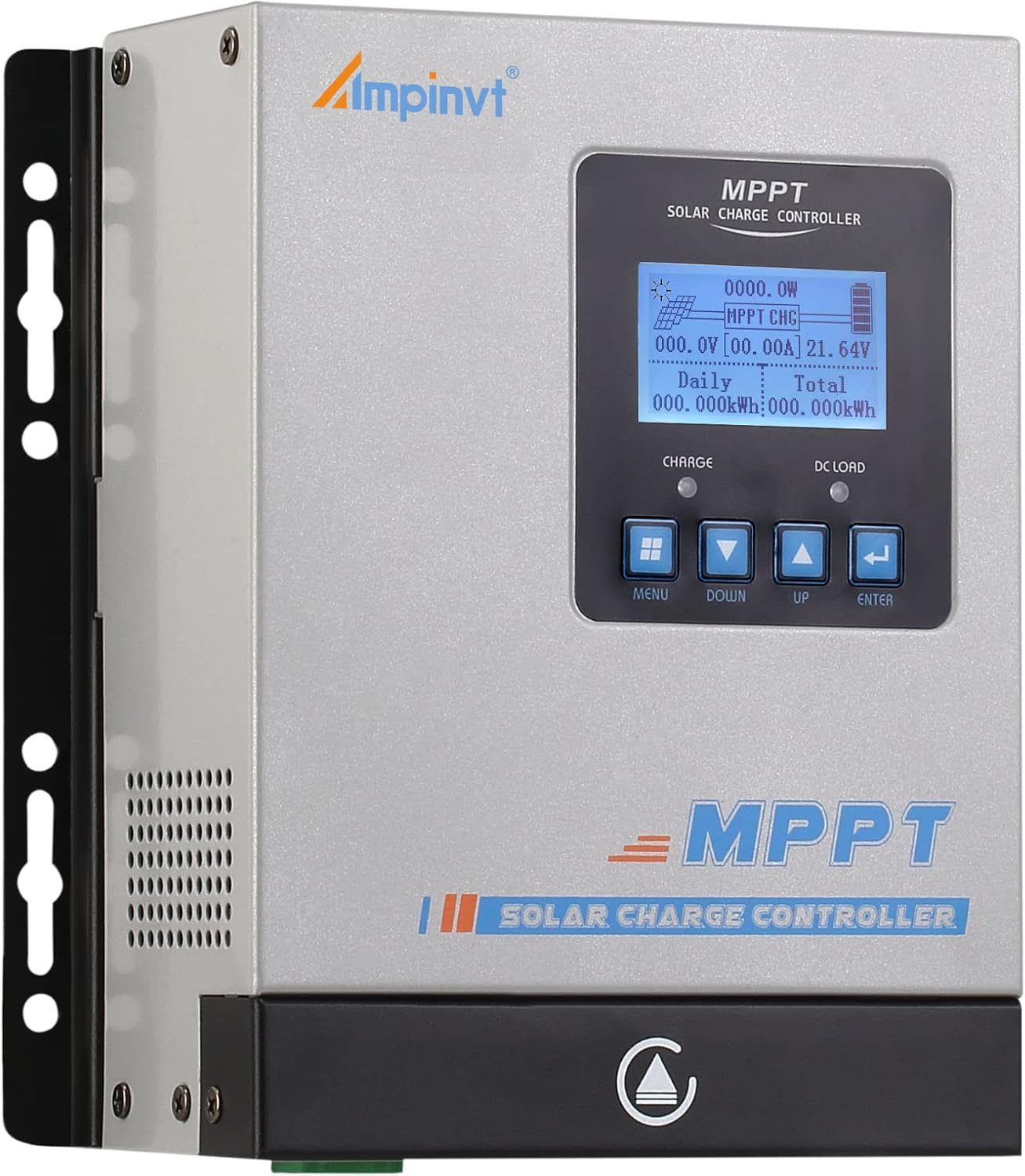
Vanonpower.com – Setting up an MPPT solar charge controller with a Bluetooth app involves pairing the controller to your smartphone via the manufacturer’s dedicated software to monitor real-time energy production and adjust charging parameters for optimal battery health.
Modern MPPT (Maximum Power Point Tracking) controllers have revolutionized off-grid solar systems by allowing users to manage complex charging profiles directly from their pockets. Unlike traditional PWM controllers, MPPT devices require precise configuration to match your specific battery chemistry—whether it is LiFePO4, AGM, or Gel—and the Bluetooth interface provides the granular control necessary to ensure your system operates at peak efficiency without requiring a physical computer connection.
Why Bluetooth Connectivity Matters
The primary advantage of using a Bluetooth-enabled MPPT controller is the ability to visualize data in real-time. You can monitor the voltage output of your solar panels, the current charging status of your batteries, and the total power generation over time. Without this connectivity, you are essentially flying blind, unable to detect if a specific panel is underperforming or if your battery bank is consistently failing to reach a full state of charge.
Furthermore, Bluetooth apps allow for firmware updates and deep parameter customization. This is particularly vital for lithium battery users, who must ensure that the “Bulk,” “Absorption,” and “Float” voltages are set exactly to the manufacturer’s specifications to prevent premature cell degradation or safety hazards.
Preparation Before Setup
Before you begin the digital configuration, ensure that your hardware is correctly installed. The battery must always be connected to the MPPT controller first. This allows the controller to detect the system voltage (12V, 24V, or 48V) automatically. If you connect the solar panels before the battery, you risk damaging the internal electronics of the controller due to a voltage spike.
Ensure that your smartphone is updated and that you have downloaded the correct official application from the manufacturer. Many generic apps exist, but using the proprietary software provided by the controller brand ensures compatibility with the specific communication protocol of your device.
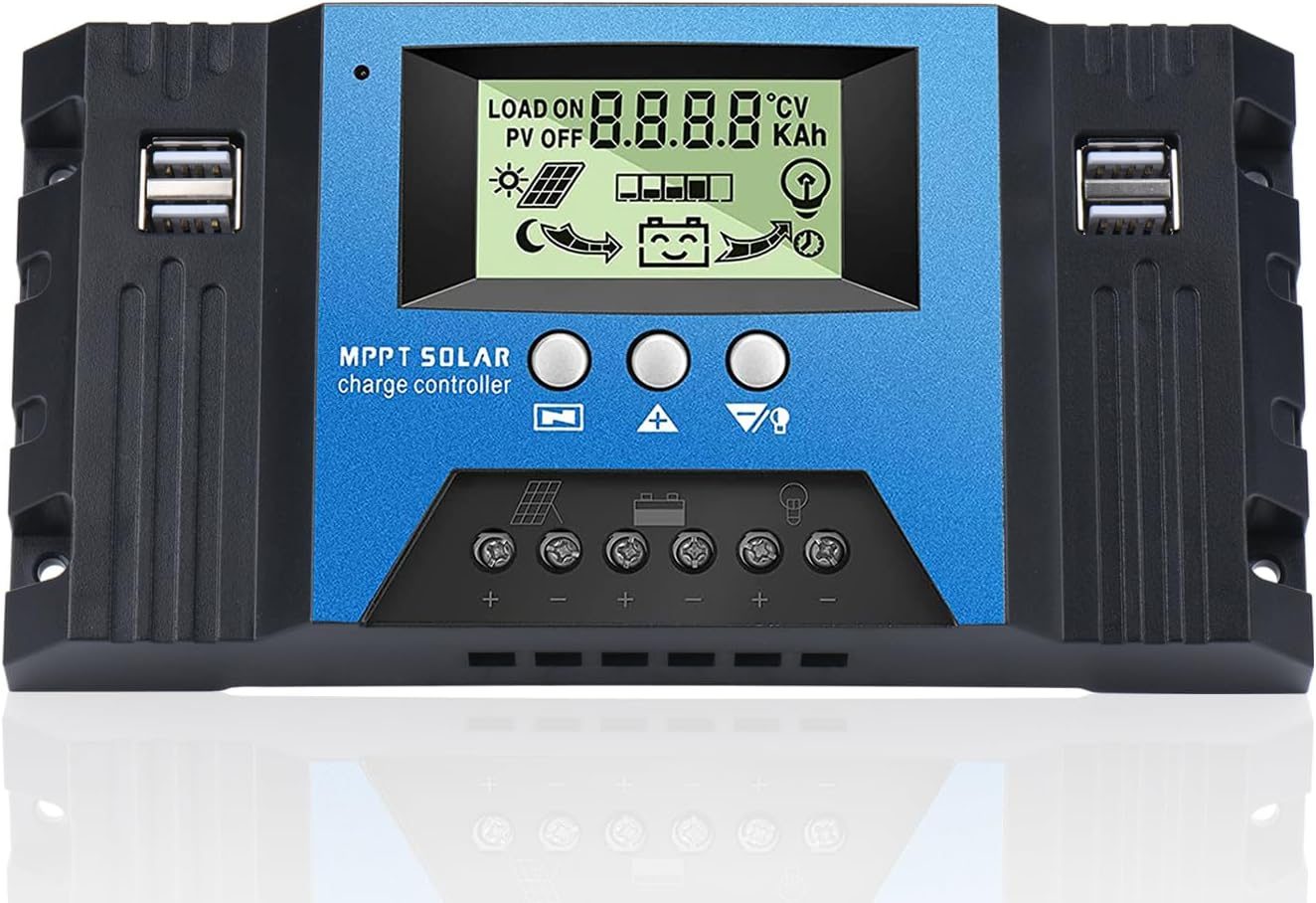
📷 Photo by ubuy.com.ph
Step-by-Step Configuration Guide
- Install the official application from the Apple App Store or Google Play Store on your smartphone.
- Power on your MPPT controller by connecting the battery bank first, followed by the solar array.
- Enable Bluetooth on your smartphone and ensure location services are active, as this is often required for the app to discover nearby Bluetooth devices.
- Open the app and select the “Add Device” or “Search” function to locate your controller’s unique ID.
- Enter the default PIN code provided in the controller’s manual (usually 0000 or 1234) when prompted to establish the initial pairing.
- Navigate to the “Settings” or “Parameters” menu to input your battery type and capacity (Ah).
- Perform a test run by checking the live dashboard to ensure the charging current matches your solar input levels.
Critical Parameters and Common Settings
Every battery chemistry has unique charging requirements. Using the default “Lead Acid” setting for a Lithium battery is a common mistake that can lead to permanent damage. The following table provides a general reference for standard charging stages, though you should always verify these against your specific battery’s datasheet.
| Battery Type | Bulk/Absorb Voltage | Float Voltage | Low Voltage Disconnect |
|---|---|---|---|
| LiFePO4 | 14.4V – 14.6V | 13.6V – 13.8V | 11.0V – 12.0V |
| AGM / Sealed | 14.4V | 13.5V – 13.8V | 10.8V – 11.5V |
| Gel | 14.2V | 13.2V – 13.5V | 10.5V – 11.0V |
| Flooded | 14.6V | 13.4V | 10.5V |
Common Pitfalls to Avoid
One frequent error is failing to set the correct battery capacity in the app. If the controller thinks your battery bank is smaller than it actually is, it may prematurely switch to “Float” mode, preventing a full charge. Conversely, setting the capacity too high can lead to incorrect state-of-charge (SOC) calculations, leaving you with less usable power than expected during the night.
Another issue is signal interference. MPPT controllers are often housed in metal enclosures or tucked away in battery compartments, which can severely weaken the Bluetooth signal. If your phone cannot see the controller, try moving closer or ensuring no large metal objects are obstructing the path between the controller and your device.
Security and Maintenance
Since your MPPT controller can be accessed by anyone with the app within range, it is highly recommended to change the default Bluetooth PIN immediately after the first successful setup. This prevents unauthorized individuals from changing your charging parameters or disconnecting your loads.
Periodically check the app for firmware update notifications. Manufacturers frequently release updates that improve MPPT tracking efficiency during cloudy days or enhance the communication stability between the controller and the smartphone app.
Q: Can I connect multiple phones to the same MPPT controller?
A: Most controllers allow multiple devices to pair, but they usually only permit one active connection at a time. If you cannot connect, ensure that another phone in your household is not currently logged into the app and actively communicating with the controller.
Q: What should I do if the app shows 0A charging even when it is sunny?
A: First, check if the battery is already fully charged. If the battery is full, the MPPT will naturally stop charging to prevent over-voltage. If the battery is low, verify that your solar panel connections are secure and that the circuit breaker between the panels and the controller is in the “On” position.
Q: Does the Bluetooth app need to be open to record data?
A: Most modern controllers have internal memory (data logging). The app will sync the stored historical data whenever you open it and connect, so you do not need to keep the app running 24/7 to capture your daily energy production statistics.
By taking the time to properly configure your MPPT controller via the Bluetooth app, you ensure the longevity of your battery bank and the maximum utility of your solar investment. Treat the app not just as a monitoring tool, but as the command center for your entire energy ecosystem.
📷 Photo by manuals.plus